Admin panel
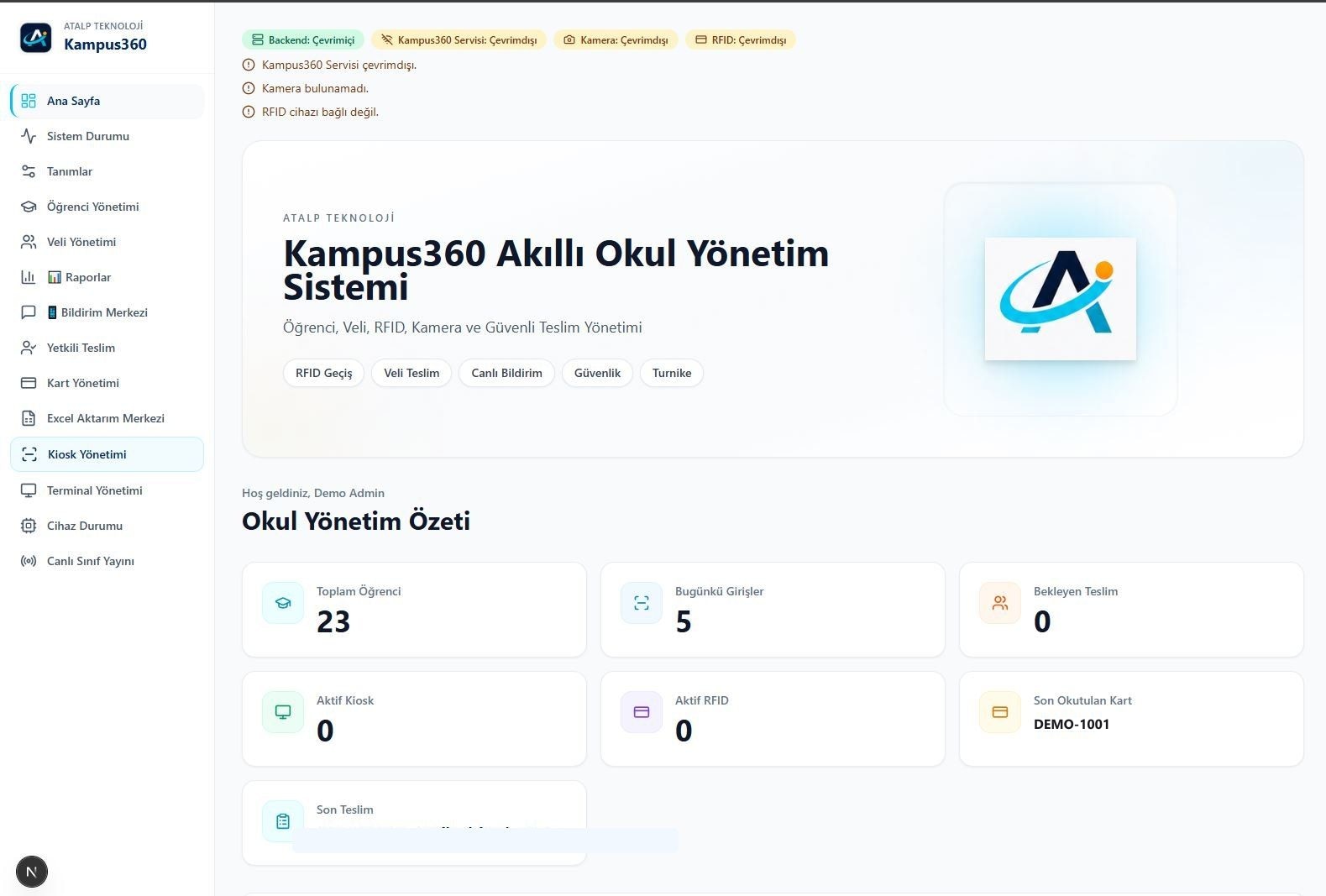
The day's entries, handovers, and device summary sit on one screen.

Our integrated software platform designed to bring student workflows, parent communication, secure student pickup operations and school management processes together. In the working application, the admin panel, the kiosk at the door, and the classroom screen work together. Card reading, guardian handover, teacher approval, notifications, and reports are one flow.
The image below is taken from the working application. Personal names are masked.
Only work that exists in the running application is listed here.
The day's entries, handovers, and device summary sit on one screen.
The student record is kept with the classroom and the guardian who can collect the student.
A card is paired with a student or a guardian. A lost card can be deactivated.
The screen at the door reads the card and starts the handover flow when a guardian arrives.
The classroom screen shows arrivals, departures, and handovers waiting for approval.
There is a template for entry, guardian arrival, handover, and an unauthorized attempt.
Entry, handover, student, classroom, and RFID movements are grouped into reports.
Classroom, student, and card records can be loaded in bulk from a spreadsheet.
Click an image to open it larger. The screens were copied from the working product; personal records are hidden.
Admin panel
The day's summary of students, entries, handovers, and devices.
Device and system status
Status of the service, database, camera, and RFID reader.
Classroom definitions
Classroom, section, card type, handover point, and school settings.
Reporting
Charts for entry, handover, and classroom distribution.
Excel import center
Bulk upload of classroom, student, and RFID card records.
Kiosk, card reading
The terminal at the door reads the card and starts the handover flow.
Classroom monitor
Who is in class, who arrived, who left, and the handover list.
Terminal management
Online and offline status of the kiosk terminals.
Classroom screen selection
Each classroom opens its own handover notifications.
The handover flow uses the same record on the kiosk, the classroom screen, and the admin panel.
1
The kiosk reads a student or guardian card.
2
The matching record shows the student, guardian, and classroom.
3
The teacher approves or rejects the handover.
4
The handover line and the related notification record are written.
5
Entry and handover movements are followed in the report center.
The sample panel shows student, classroom, entry and exit, card, handover, notification, and report screens. The data is made up. It does not connect to a live school database.
For installation and a live demonstration, write to the sales advisor or the general line.
General contact
0540 713 11 21